
WhatsApp Username Feature: How to Add, Find & Use It in 2026

Short Summary:
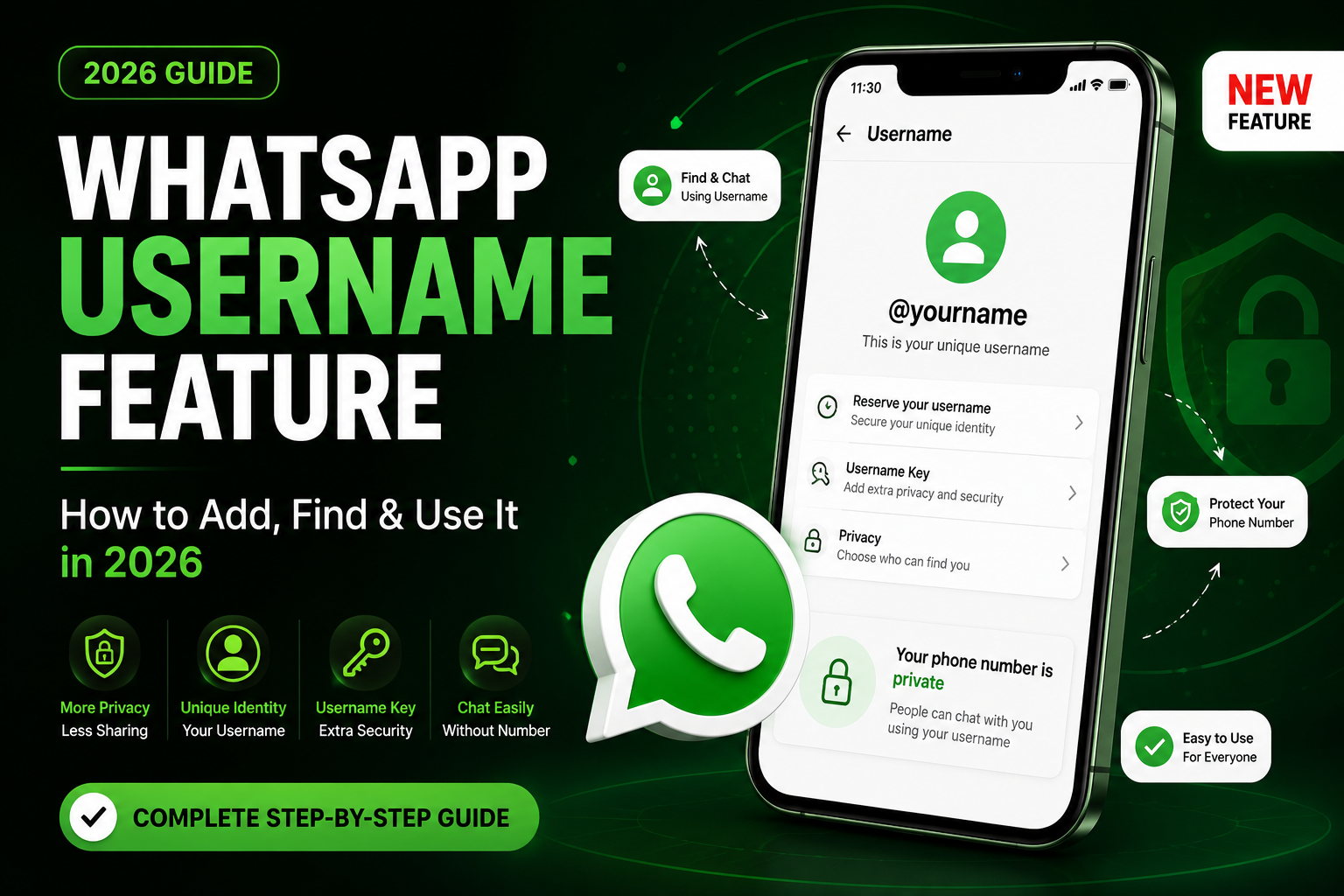
WhatsApp usrname feature has introduced its new Username feature, allowing users to connect without sharing their personal phone numbers. This guide explains how to create and reserve a WhatsApp username, manage privacy settings, enable the Username Key, and control who can contact you. You’ll also learn the benefits, limitations, rollout status in India, and how this feature helps businesses, creators, and everyday users reduce spam while protecting their identity. Follow this step-by-step guide to stay ahead of WhatsApp’s latest privacy update and secure your preferred username before it becomes widely available.
📑 Table of Contents
Jump directly to any section of this guide.
- Step 1 — Open the WhatsApp Menu
- Step 2 — Open Your Profile
- Step 3 — Find “Reserve Username”
- Step 4 — Start the Reservation
- Step 5 — Type Your Username
- Step 6 — Confirm Your Reservation
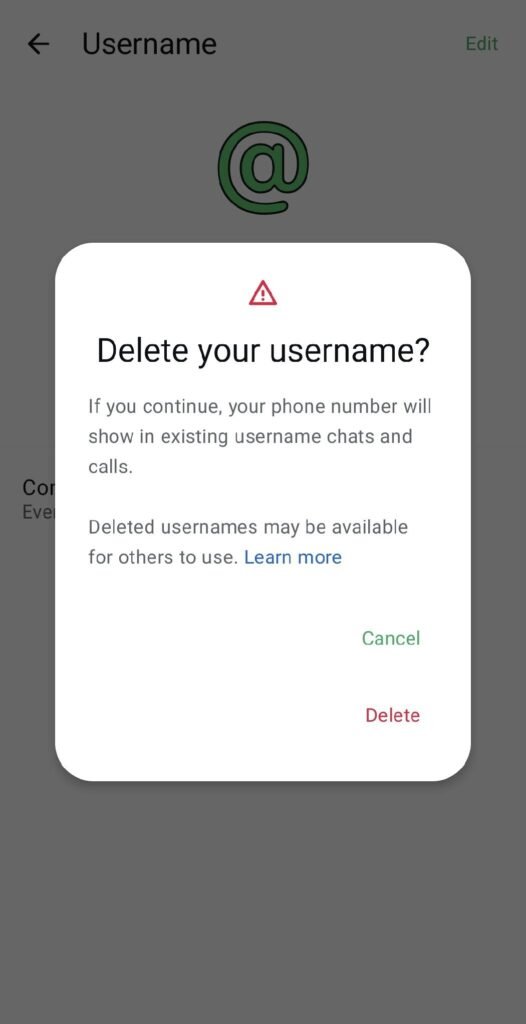
- Step 7 — Manage Your Username (Edit or Delete)
- Step 8 — Understand the Delete Warning
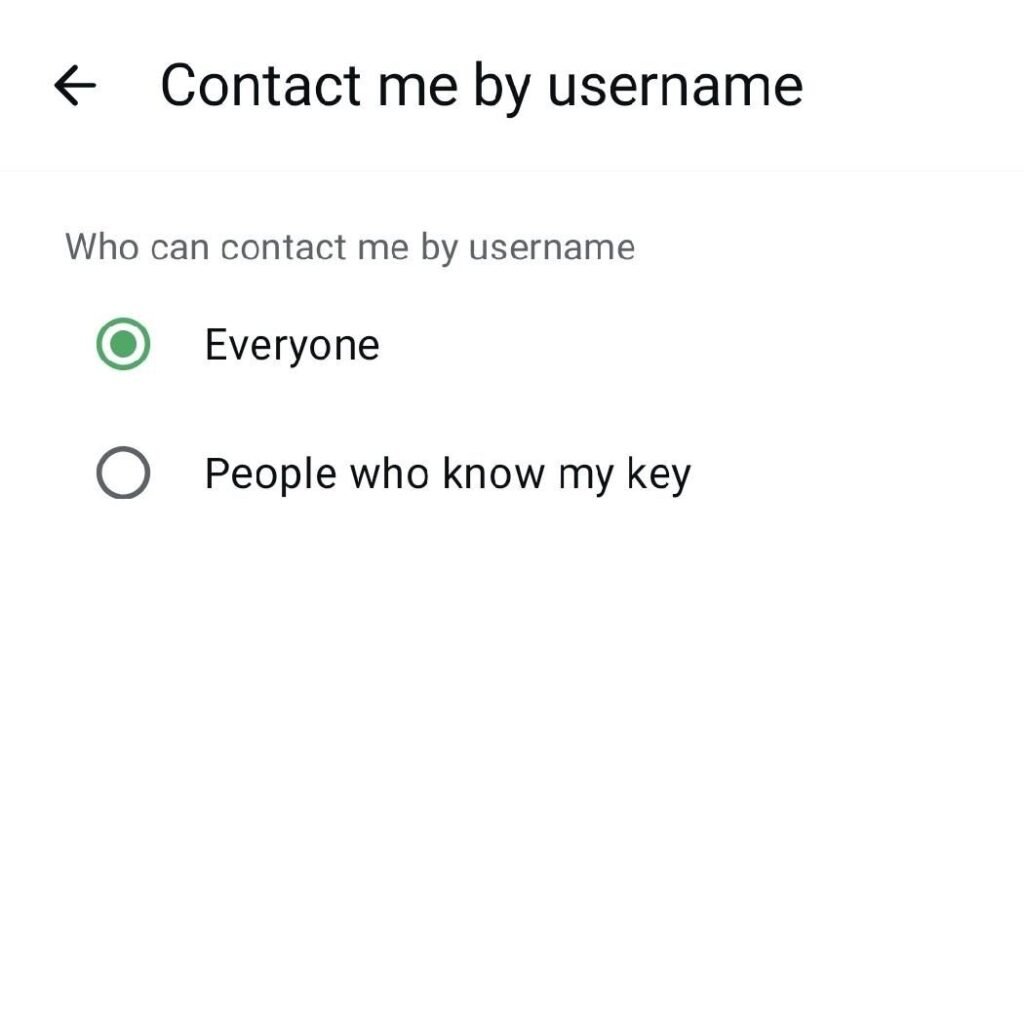
- Step 9 — Set Who Can Contact You by Username
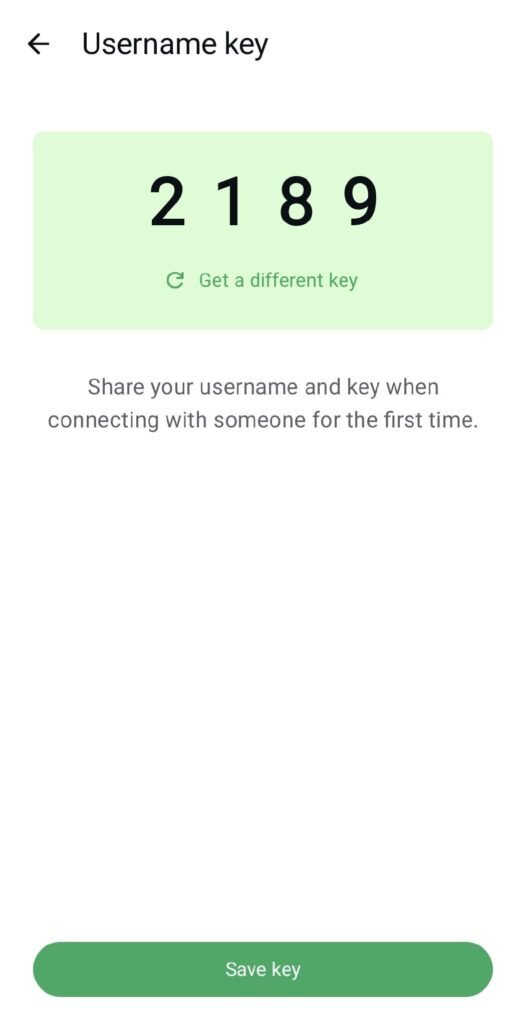
- Step 10 — Generate a Username Key (Recommended)
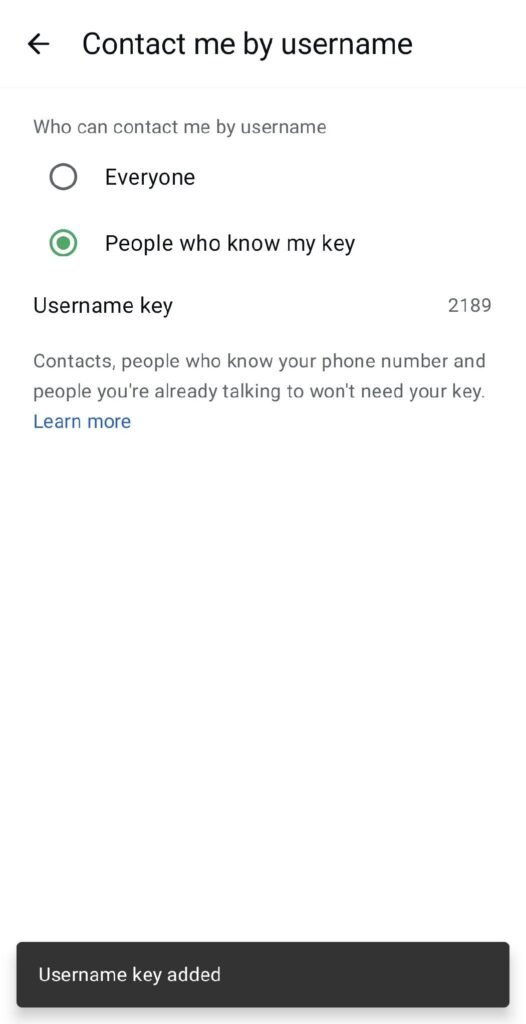
- Step 11 — Confirm the Key Is Active
Introduction
WhatsApp is rolling out one of its most requested privacy upgrades yet: Usernames. Instead of sharing your personal phone number with every new contact, client, or student, you’ll soon be able to hand out a simple @username.
keeping your real number private unless you choose to reveal it.
This feature is already appearing in staged rollouts on some Android and iOS accounts under Settings, and it is expected to trend heavily once it goes fully live, given how directly it addresses a pain point every WhatsApp user has felt: unwanted calls and messages from people who “got your number” from somewhere else.
In this guide, we’ll walk through the entire process end-to-end using real screenshots from a live account, from opening Settings, to reserving a username, to locking it down with a privacy key, so you (or your audience) can follow along with zero guesswork.
Why This Feature Matters
- Privacy by default: Your phone number no longer has to be the first thing a stranger learns about you on WhatsApp.
- Professional identity: Businesses, trainers, and creators can share a clean, brandable @handle instead of a phone number similar to Instagram or Telegram.
- Control over contact access: A username key lets you decide exactly who is allowed to reach you by username, not just anyone who finds it.
- Reduced spam and scam risk: Random number harvesting becomes far less useful when your number itself isn’t the entry point.
- Cross-platform familiarity: Instagram and Telegram users are already used to @usernames, making WhatsApp’s version feel intuitive from day one.
Step-by-Step Guide: How to Reserve Your WhatsApp Username
Follow these steps in order. Screens may say “coming soon” if the feature hasn’t fully rolled out to your account yet reserving your username now locks it in for when it activates.
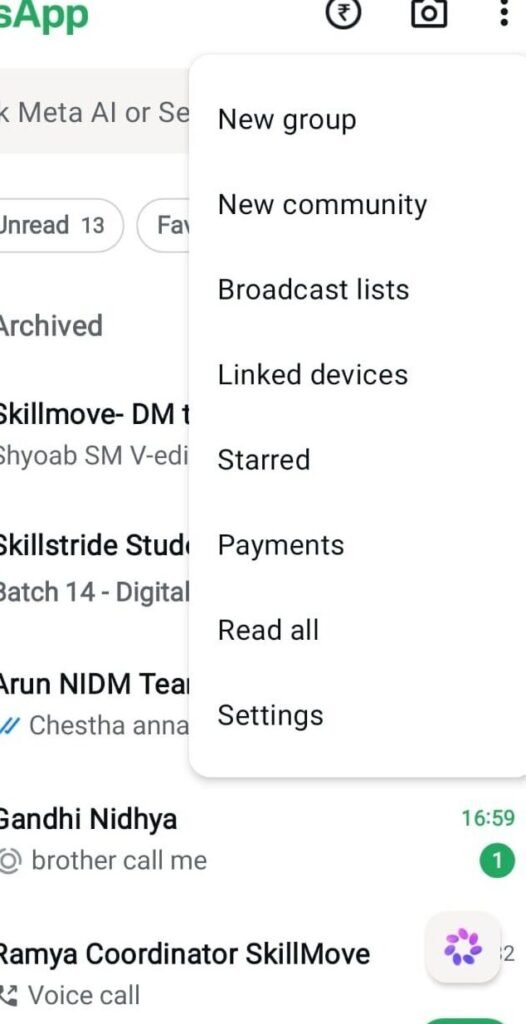
Step 1 — Open the WhatsApp Menu
Open WhatsApp and tap the three-dot menu icon in the top-right corner of the Chats screen. From the dropdown, select Settings
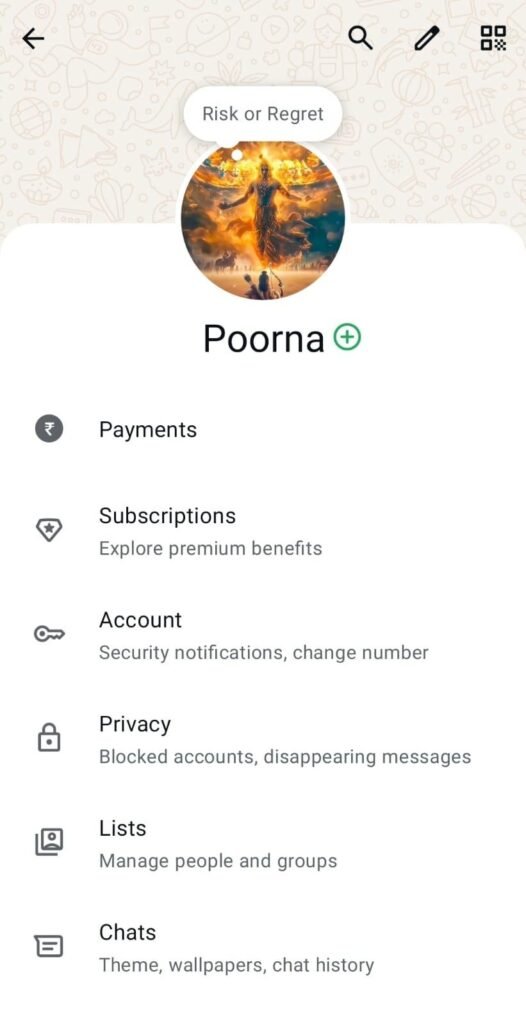
Step 2 — Open Your Profile
In Settings, you’ll see your profile picture and name at the top, along with Payments, Subscriptions, Account, Privacy, Lists, and Chats. Tap your name/photo to open your Profile page.
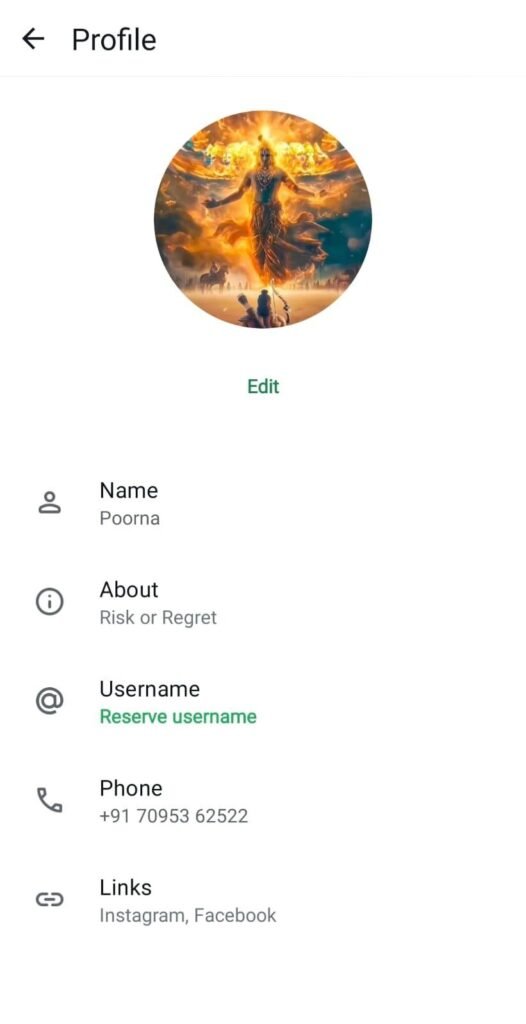
Step 3 — Find “Reserve Username”
On the Profile page, you’ll now see a new field called Username, sitting right below About and above Phone. Tap Reserve username.
Step 4 — Start the Reservation
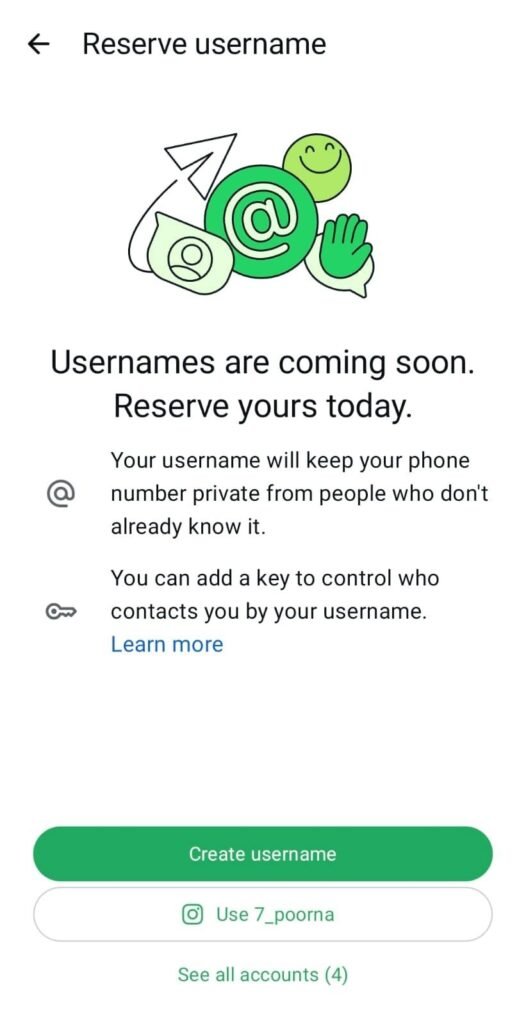
A new screen explains that usernames are coming soon and lets you reserve yours today. It also notes that your username keeps your phone number private, and that you can add a key to control who contacts you by username. Tap Create username.
Step 5 — Type Your Username
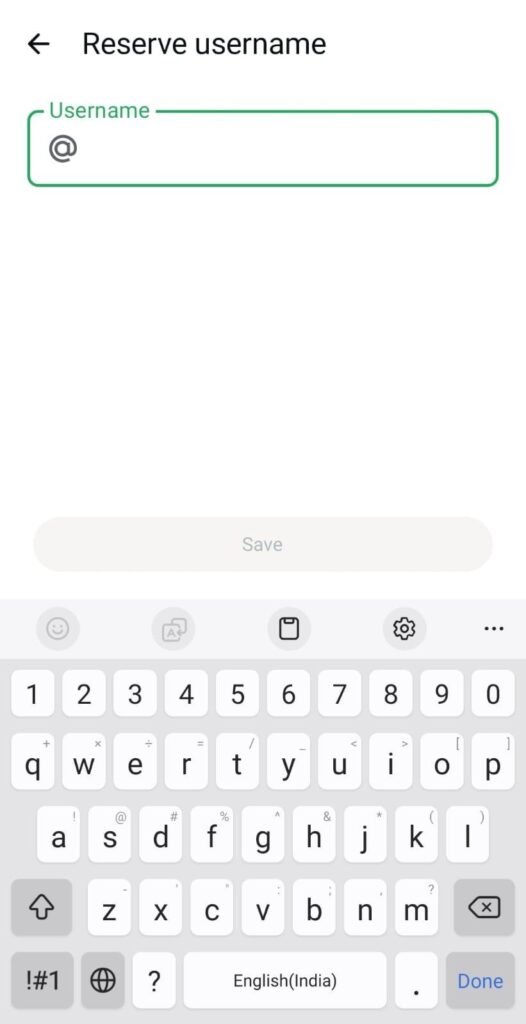
Enter the username you want to reserve in the field provided (it must start with @). Once you’re happy with it, tap Save.
Step 6 — Confirm Your Reservation
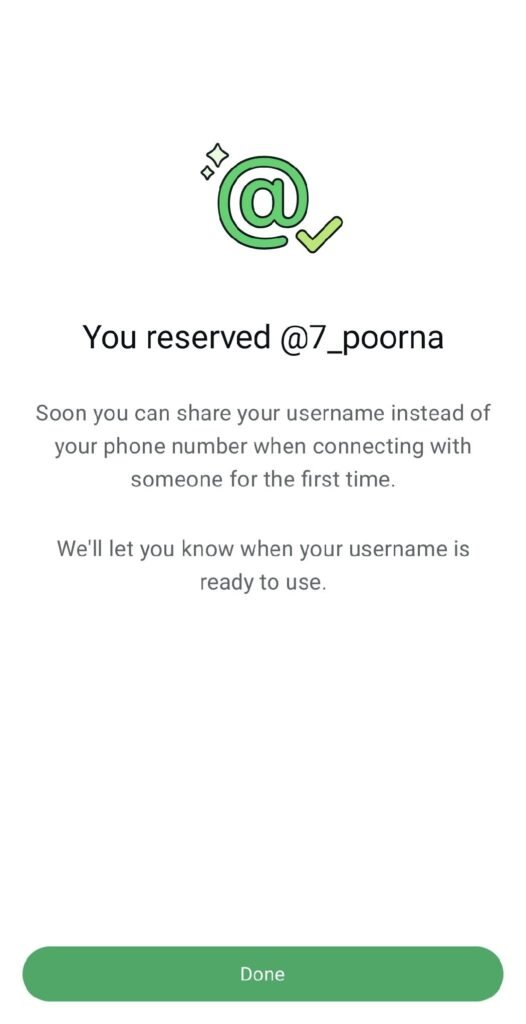
You’ll get a confirmation screen “You reserved @yourusername” along with a note that you’ll be notified once usernames are ready to use. Tap Done to finish.
Step 7 — Manage Your Username (Edit or Delete)
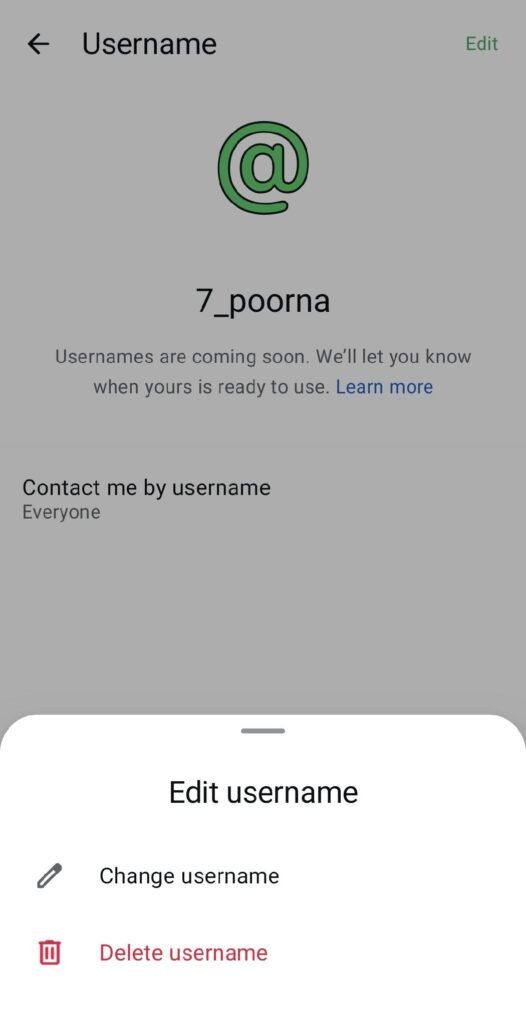
Back on the Username page, your reserved handle is now visible, along with the current audience setting under “Contact me by username.” Tap Edit to Change username or Delete username at any time.
Step 8 — Understand the Delete Warning
If you choose Delete username, WhatsApp warns you that your phone number will become visible again in any existing username-based chats and calls, and that deleted usernames may become available for others to claim. Only proceed if you’re sure.
Step 9 — Set Who Can Contact You by Username
Open Contact me by username from your Profile. By default this is set to Everyone, meaning anyone who knows your username can message you.
Step 10 — Generate a Username Key (Recommended)
Switch the option to People who know my key for tighter control. WhatsApp generates a random numeric key (e.g. 2189) that you must share along with your username before someone new can reach you. Tap Save key to confirm, or Get a different key to regenerate it.
Step 11 — Confirm the Key Is Active
Pros and Cons of WhatsApp Usernames
Pros
- Keeps your personal phone number private from strangers by default.
- Gives businesses and creators a clean, memorable, brandable handle to share publicly.
- The username key adds a second layer of control beyond just the handle itself.
- Familiar @handle format near-zero learning curve for anyone who’s used Instagram or Telegram.
- Existing contacts are unaffected; they can still reach you exactly as before.
- Reduces the value of leaked or scraped phone number lists for spammers.
Cons
- Still in staged rollout the “coming soon” screens mean full functionality isn’t live for everyone yet.
- A deleted username can be claimed by someone else later, and your number becomes visible again in old username-based chats.
- Sharing the wrong key (or setting access to Everyone) can defeat the purpose of added privacy.
- Extra step to manage users who don’t set a key or forget to update it may end up less protected than they assume.
- Username squatting is likely in the early days, similar to early Instagram/Twitter handle land-grabs.
Conclusion
WhatsApp Usernames close a long-standing privacy gap on the platform: the requirement to hand over your real phone number just to start a conversation. Whether you’re an individual who wants fewer unknown callers, or a business/trainer wanting a professional handle to share on Instagram, business cards, or course materials, this feature is worth setting up early.
The safest setup for most people is: reserve a clean, brandable username, then switch “Contact me by username” to People who know my key and share both the username and key only with the audiences you intend to reach you. Since this feature is trending and rolling out gradually, getting familiar with it now and reserving your preferred handle before someone else does puts you ahead of the curve.
Frequently Asked Questions
Find answers to the most common questions about the new WhatsApp Username feature, privacy settings, and how usernames work.
Is this feature live for everyone right now?
Will people still be able to find me by my phone number?
What happens if I delete my username?
Do I need a Username Key?
Can I change my username later?
Does a WhatsApp Username completely replace my phone number?
Course Recommendations
Explore Our Programs
Upgrade to success with industry-recognized expert training

AI Integrated Digital Marketing Program
Offline (Hyderabad) + Online Live
- 2 Months Training + 1 Month Live Project
- Beginner to Advanced Track
- 4 Industry Certifications
- 100% Placement Assurance

Generative AI Mastery Program
Live Online + Recorded Access
- 35 Sessions / 40 Hours Comprehensive
- 4 Capstone + 10 Mini Projects
- Advanced Prompt Engineering Frameworks
- Premium Mastery Certification